>>> copy it, print it, learn it tmux Cheat Sheet. Every Command, Explained
tmux is a terminal multiplexer: it keeps your terminal sessions running on a machine after you disconnect, and splits one screen into many. This cheat sheet has every command and shortcut you'll use, what each one does in plain words, and a copy button on all of them.
// How tmux works //
Server, Sessions, Windows, Panes
Four words and you understand tmux. The server runs in the background on your machine. It holds sessions (one per project), each session holds windows (like tabs), and each window can be split into panes. You can close your laptop; the server and everything in it keep running.
- Pane One terminal. This window is split into three.
- Window The whole screen, like a tab. The status bar lists them: 0, 1, 2. The * marks the one you're looking at.
- Session
work: one project's set of windows. You attach to and detach from sessions. - Server Runs in the background and holds every session (here also
agentsanddb). It keeps running after you disconnect.
How to read the keys
Ctrl+bthend means: hold Ctrl, tap b, let go of both, then press d. Every tmux shortcut starts with Ctrl+b, so tmux knows the next key is for it and not for the program you're running.
The Or type column is the same thing as a command: type it in your normal terminal, or inside tmux after Ctrl+bthen: (without the word tmux). Alt is Option on a Mac.
No commands match that. Try a shorter word.
// Day one //
The Six You Need Today
If you remember nothing else: start a named session, leave it, list what's running, get back in, split the screen, scroll up.
| Press | Or type | What it does |
|---|---|---|
| no shortcut, type it → | tmux new -s work |
Start a new session called work. Name them; future you will thank you. |
| Ctrl+bthen d | tmux detach |
Detach: leave tmux, everything inside keeps running. |
| no shortcut, type it → | tmux ls |
List the sessions that are running. |
| no shortcut, type it → | tmux attach -t work |
Get back into the session called work, exactly where it was. |
| Ctrl+bthen % | tmux split-window -h |
Split the screen into left and right panes. |
| Ctrl+bthen [ | keys only | Scroll up (copy mode). Arrows or PgUp to move, q to leave. |
// Install //
Install tmux In One Line
tmux is in every package manager. Anything from 3.0 up is fine; 3.2 or newer gets you the nicest defaults.
| Press | Or type | What it does |
|---|---|---|
| no shortcut, type it → | sudo apt install tmux |
Debian, Ubuntu, Raspberry Pi OS. |
| no shortcut, type it → | sudo dnf install tmux |
Fedora, RHEL, Rocky, Alma. |
| no shortcut, type it → | sudo pacman -S tmux |
Arch and friends. |
| no shortcut, type it → | brew install tmux |
macOS, with Homebrew. |
| no shortcut, type it → | tmux -V |
Check which version you have. |
// Sessions //
Sessions: Start, Leave, Come Back
A session is a whole workspace that lives on the server. Detach from it, close the laptop, and it keeps running until you kill it (or the machine reboots).
| Press | Or type | What it does |
|---|---|---|
| no shortcut, type it → | tmux |
Start a new, unnamed session (named 0, 1, 2…). |
| no shortcut, type it → | tmux new -s work |
Start a session called work. |
| no shortcut, type it → | tmux new -A -s work |
Attach to work if it exists, create it if it doesn't. Great in scripts and SSH configs. |
| no shortcut, type it → | tmux new -d -s build |
Create a session in the background, without attaching. |
| Ctrl+bthen s | tmux ls |
List sessions. Inside tmux, Ctrl+b then s opens an interactive tree: arrows to pick, Enter to switch. |
| no shortcut, type it → | tmux attach -t work |
Attach to a session. Short form: tmux a -t work. |
| no shortcut, type it → | tmux a |
Attach to the most recently used session. |
| no shortcut, type it → | tmux attach -d -t work |
Attach and kick every other client off (fixes a session squeezed to someone else's screen size). |
| Ctrl+bthen d | tmux detach |
Detach. The session keeps running. |
| Ctrl+bthen $ | tmux rename-session -t old new |
Rename a session. |
| Ctrl+bthen ( or Ctrl+bthen ) | tmux switch -t work |
Previous / next session. Or switch straight to one by name. |
| Ctrl+bthen L | keys only | Jump back to the last session you were in. |
| no shortcut, type it → | tmux kill-session -t work |
Kill a session and everything running in it. |
| no shortcut, type it → | tmux kill-session -a |
Kill every session except the one you're in. |
| no shortcut, type it → | tmux kill-server |
Kill all sessions and the tmux server itself. |
Example: the everyday loop
$ tmux new -s api          # start work
# …run things, then Ctrl+b d to detach, close the laptop…
$ tmux ls                  # later, from anywhere over SSH
api: 2 windows (created Thu Sep 24 09:12:44 2026)
$ tmux attach -t api       # everything is where you left it
// Windows //
Windows Are Tabs
Each session holds windows, shown in the status bar at the bottom like tabs: 0:vim 1:server 2:logs. One window per job keeps things findable.
| Press | Or type | What it does |
|---|---|---|
| Ctrl+bthen c | tmux new-window -n logs |
New window (the command version names it logs). |
| Ctrl+bthen , | tmux rename-window logs |
Rename the current window. |
| Ctrl+bthen n or Ctrl+bthen p | tmux next-window |
Next / previous window. |
| Ctrl+bthen 0 | tmux select-window -t 2 |
Go to a window by number: Ctrl+b then 0 to 9. |
| Ctrl+bthen l | keys only | Toggle back to the last window you used. |
| Ctrl+bthen w | keys only | Pick a window from a list of all sessions and windows, with previews. |
| Ctrl+bthen f | keys only | Find a window by searching its name or content. |
| Ctrl+bthen & | tmux kill-window -t 2 |
Close a window (asks first). |
| Ctrl+bthen . | tmux move-window -t 4 |
Move the current window to another number. |
| no shortcut, type it → | tmux swap-window -s 2 -t 1 |
Swap windows 2 and 1, to reorder them. |
| no shortcut, type it → | tmux move-window -r |
Renumber all windows so there are no gaps. |
// Panes //
Panes: Split The Screen
Panes split one window into several terminals. The naming trips everyone up: % puts panes side by side (a vertical divider), " stacks them top and bottom.
| Press | Or type | What it does |
|---|---|---|
| Ctrl+bthen % | tmux split-window -h |
Split left and right. |
| Ctrl+bthen " | tmux split-window -v |
Split top and bottom. |
| no shortcut, type it → | tmux split-window -h -c "#{pane_current_path}" |
Split and keep the current folder (put it in your config, see below). |
| Ctrl+bthen ←↑↓→ | tmux select-pane -L |
Move to the pane in that direction. |
| Ctrl+bthen o | keys only | Go to the next pane. |
| Ctrl+bthen ; | keys only | Toggle back to the last pane. |
| Ctrl+bthen q | keys only | Show pane numbers; press a number to jump to that pane. |
| Ctrl+bthen z | tmux resize-pane -Z |
Zoom: make the pane full screen. Same again to put it back. |
| Ctrl+bthen Ctrl+↑ | tmux resize-pane -U 5 |
Resize by one cell (Ctrl+arrow), or by five with Alt+arrow. The command takes -U -D -L -R and a size. |
| Ctrl+bthen { or Ctrl+bthen } | tmux swap-pane -U |
Swap the pane with the previous / next one. |
| Ctrl+bthen Ctrl+o | tmux rotate-window |
Rotate all panes in the window. |
| Ctrl+bthen ! | tmux break-pane |
Pop the pane out into its own window. |
| no shortcut, type it → | tmux join-pane -s 2 |
Pull window 2 into this window as a pane (the reverse of break). |
| Ctrl+bthen x | tmux kill-pane |
Close the pane (asks first). Typing exit in its shell works too. |
| Ctrl+bthen Space | tmux select-layout tiled |
Cycle through the preset layouts, or pick one by name. |
| Ctrl+bthen Alt+1 | tmux select-layout even-horizontal |
Presets: Alt+1 even-horizontal, 2 even-vertical, 3 main-horizontal, 4 main-vertical, 5 tiled. |
| Ctrl+bthen E | tmux select-layout -E |
Spread panes out evenly (tmux 3.1+). |
| no shortcut, type it → | tmux setw synchronize-panes on |
Type into every pane of the window at once. Handy for several servers; switch off with off. |
// Scrolling & copy mode //
Scroll Up, Search, Copy, Paste
Your mouse wheel doesn't scroll tmux by default; copy mode does. Keys differ slightly between vi mode and emacs mode (tmux picks vi if your $EDITOR is vi or vim). Check with: tmux show -gw mode-keys.
| Press | Or type | What it does |
|---|---|---|
| Ctrl+bthen [ | keys only | Enter copy mode. Now arrows, PgUp and PgDn scroll. |
| Ctrl+bthen PgUp | keys only | Enter copy mode and scroll up a page in one go. |
| q | keys only | Leave copy mode, back to the bottom. |
| ? or Ctrl+r | keys only | Search upwards (vi: ?, emacs: Ctrl+r). / or Ctrl+s searches downwards. |
| n or N | keys only | Next / previous match. |
| Space or Ctrl+Space | keys only | Start selecting (vi: Space, emacs: Ctrl+Space). |
| Enter or Alt+w | keys only | Copy the selection into a tmux buffer (vi: Enter, emacs: Alt+w). |
| Ctrl+bthen ] | tmux paste-buffer |
Paste the last copied text. |
| Ctrl+bthen = | tmux choose-buffer |
Pick which copied text to paste. |
| Ctrl+bthen # | tmux list-buffers |
List everything you've copied. |
| no shortcut, type it → | tmux set -g mouse on |
Turn on the mouse: wheel scrolls, click selects panes, drag resizes. Add it to your config. |
| no shortcut, type it → | tmux capture-pane -pS - > ~/scrollback.txt |
Save a pane's entire scrollback to a file. |
// Everyday keys //
The Rest Of The Keyboard
The ones you'll reach for once a week, and the one that lists all the others.
| Press | Or type | What it does |
|---|---|---|
| Ctrl+bthen ? | tmux list-keys |
List every key binding. The cheat sheet inside the cheat sheet. |
| Ctrl+bthen : | keys only | Open the tmux command prompt: type any tmux command without the word tmux. |
| no shortcut, type it → | tmux source-file ~/.tmux.conf |
Reload your config without restarting. |
| Ctrl+bthen D | keys only | Choose another client (device) to detach. |
| Ctrl+bthen ~ | keys only | Show recent tmux messages. |
| Ctrl+bthen t | keys only | A big clock. Any key to leave. |
| Ctrl+bthen Ctrl+z | keys only | Suspend the tmux client (fg to come back). |
| Ctrl+bthen Ctrl+b | keys only | Send Ctrl+b itself to the program inside (for nested tmux, or emacs). |
| no shortcut, type it → | tmux show -g |
Show all global options and their values. |
// Command line & scripting //
Drive tmux From A Script
Every key has a command, so tmux is fully scriptable. Targets look like session:window.pane, for example work:1.0.
| Press | Or type | What it does |
|---|---|---|
| no shortcut, type it → | tmux send-keys -t work:1 'npm test' Enter |
Type a command into a window and press Enter. |
| no shortcut, type it → | tmux capture-pane -p -t work -S -50 |
Print the last 50 lines of a pane. |
| no shortcut, type it → | tmux display -p '#{pane_current_path}' |
Print the current pane's folder (any #{format} works). |
| no shortcut, type it → | tmux has-session -t work |
Exit status 0 if the session exists; use it in if statements. |
| no shortcut, type it → | tmux list-panes -a |
List every pane in every session. |
| no shortcut, type it → | tmux list-windows -t work |
List the windows in a session. |
Example: a whole dev setup in one script
Save as dev.sh and run it: an editor window, a server window split in two, and you're attached to all of it. Run it again later and it just re-attaches.
#!/bin/sh
# attach if the session already exists
tmux has-session -t dev 2>/dev/null && exec tmux attach -t dev
tmux new -d -s dev -n editor
tmux send-keys -t dev:editor 'vim .' Enter
tmux new-window -t dev -n server
tmux send-keys -t dev:server 'npm run dev' Enter
tmux split-window -h -t dev:server
tmux send-keys -t dev:server 'npm test -- --watch' Enter
tmux select-window -t dev:editor
tmux attach -t dev
// .tmux.conf //
A Config Worth Copying
tmux reads ~/.tmux.conf when it starts. This one fixes the usual complaints: mouse scrolling, windows numbered from 1, splits that keep your folder, a sane copy mode. Paste it in, then run tmux source-file ~/.tmux.conf (or Ctrl+b then r, once it's loaded).
# ~/.tmux.conf
# Ctrl+a instead of Ctrl+b, like screen (delete these three lines to keep Ctrl+b)
set -g prefix C-a
unbind C-b
bind C-a send-prefix

# Mouse: click panes, drag borders, scroll with the wheel
set -g mouse on

# Number windows and panes from 1, and close the gaps
set -g base-index 1
setw -g pane-base-index 1
set -g renumber-windows on

# More scrollback, no Esc delay in vim, true colour (tmux 3.2+)
set -g history-limit 50000
set -sg escape-time 10
set -g default-terminal "tmux-256color"
set -as terminal-features ",xterm-256color:RGB"

# vi keys in copy mode: v to select, y to copy
setw -g mode-keys vi
bind -T copy-mode-vi v send -X begin-selection
bind -T copy-mode-vi y send -X copy-selection-and-cancel

# Split with | and -, new windows keep the current folder
bind | split-window -h -c "#{pane_current_path}"
bind - split-window -v -c "#{pane_current_path}"
bind c new-window -c "#{pane_current_path}"

# Ctrl+b r (or Ctrl+a r) reloads this file
bind r source-file ~/.tmux.conf \; display "Config reloaded"
If colours look wrong or tmux says "missing or unsuitable terminal", your system may not know tmux-256color yet: change that line to set -g default-terminal "screen-256color".
// Plugins //
Plugins: TPM And Resurrect
tmux sessions live in memory, so a reboot ends them. Two plugins fix that: tmux-resurrect saves and restores your sessions, windows, panes and folders; tmux-continuum saves automatically every 15 minutes. Install them with TPM, the tmux plugin manager.
| Press | Or type | What it does |
|---|---|---|
| no shortcut, type it → | git clone https://github.com/tmux-plugins/tpm ~/.tmux/plugins/tpm | Install TPM (once). |
| Ctrl+bthen I | keys only | Install the plugins listed in your config (capital I). |
| Ctrl+bthen U | keys only | Update plugins. |
| Ctrl+bthen Ctrl+s | keys only | tmux-resurrect: save everything now. |
| Ctrl+bthen Ctrl+r | keys only | tmux-resurrect: restore after a reboot. |
Add this to the end of ~/.tmux.conf, reload, then press Ctrl+b then I (capital i):
set -g @plugin 'tmux-plugins/tpm'
set -g @plugin 'tmux-plugins/tmux-sensible'
set -g @plugin 'tmux-plugins/tmux-resurrect'
set -g @plugin 'tmux-plugins/tmux-continuum'
set -g @continuum-restore 'on'

# keep this line at the very bottom
run '~/.tmux/plugins/tpm/tpm'
// When tmux complains //
Error Messages, Translated
| You see | What it means | Fix |
|---|---|---|
sessions should be nested with care, unset $TMUX to force | You're already inside tmux and tried to start or attach another one. | Switch instead: Ctrl+b then s, or tmux switch -t work |
no server running on /tmp/tmux-1000/default | No sessions exist right now, so there's nothing to list or attach to. | Start one: tmux new -s work |
can't find session: work | There's no session with that name (names are case-sensitive). | Check the names: tmux ls |
open terminal failed: missing or unsuitable terminal | The server doesn't know your terminal type ($TERM). | export TERM=xterm-256color then try again |
| The mouse wheel scrolls your terminal, not tmux | Mouse mode is off (the default). | tmux set -g mouse on, or Ctrl+b then [ to scroll |
| Esc is slow in vim or neovim | tmux waits after Esc to see if it's an Alt combination. | tmux set -sg escape-time 10 |
| The window is small, with dots around it | Another, smaller device is attached to the same session. | Re-attach and detach the others: tmux attach -d -t work |
| Sessions are gone after a reboot | tmux lives in memory; rebooting ends the server. | Use tmux-resurrect and tmux-continuum (see Plugins). Running AI agents? RETRO TMUX brings agent sessions back and resumes the work |
// tmux vs screen //
Coming From GNU screen?
Same idea, different keys. tmux has easier panes, a status bar out of the box and a command for everything. Here's the translation.
| Do this | screen | tmux |
|---|---|---|
| Prefix | Ctrl+a | Ctrl+b |
| New named session | screen -S work | tmux new -s work |
| List sessions | screen -ls | tmux ls |
| Re-attach | screen -r work | tmux attach -t work |
| Detach | Ctrl+a then d | Ctrl+b then d |
| New window | Ctrl+a then c | Ctrl+b then c |
| Split left / right | Ctrl+a then | | Ctrl+b then % |
// tmux in your pocket //
Your Sessions, On Your Phone
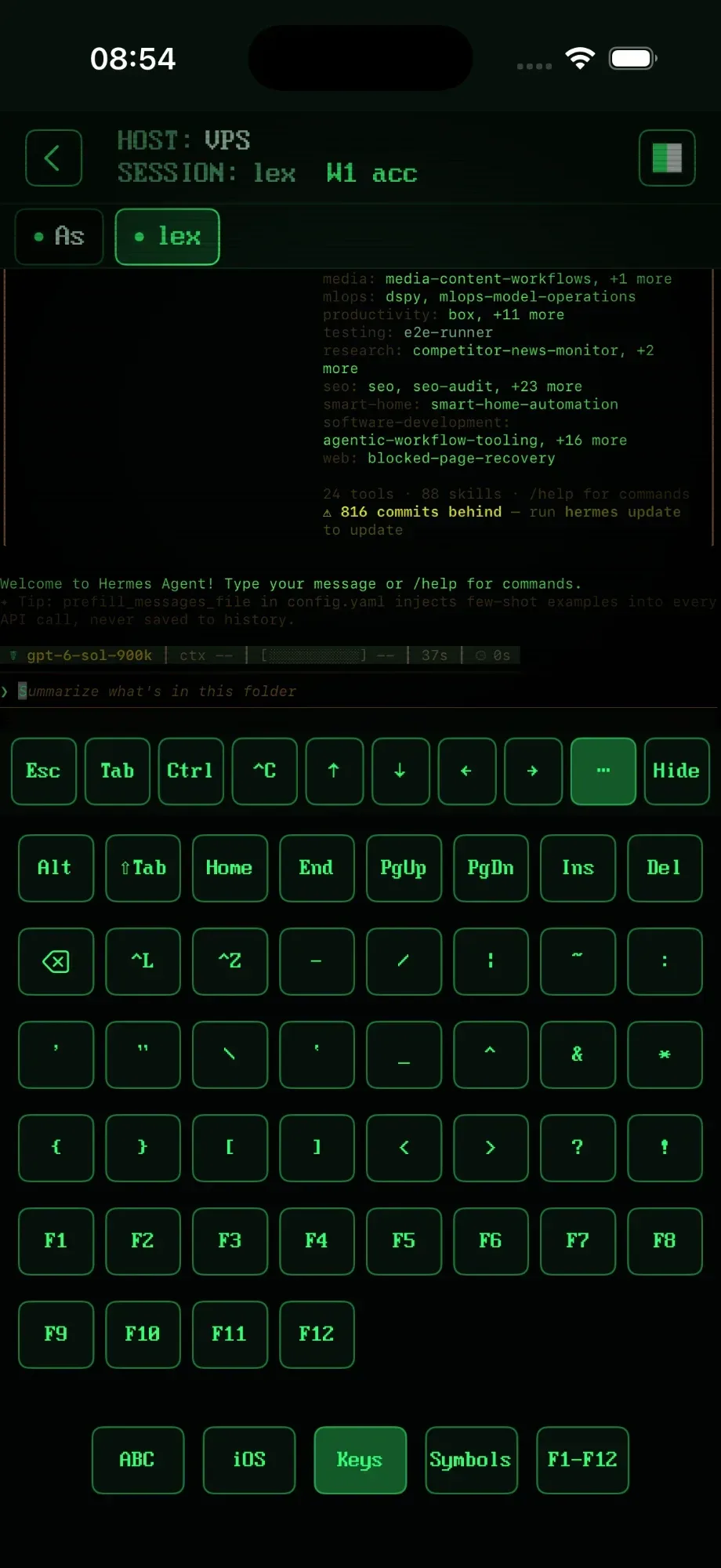
The best thing about tmux is that your work keeps running on the server. RETRO TMUX makes the most of that: attach to those same sessions from an iPhone or iPad, with a keyboard that has a real Ctrl, and see what Claude Code or Codex is doing without attaching at all.
- Your sessions, windows and panes, natively, through tmux control mode.
- Panes side by side on iPad, each scrolling on its own.
- No Ctrl+b gymnastics: sessions and windows are a tap away.
// FAQ //
tmux Questions, Answered
How do I scroll up in tmux?
Press Ctrl+b, let go, then [ to enter copy mode, then scroll with the arrow keys or PgUp and PgDn. Press q to leave. To scroll with the mouse wheel instead, add set -g mouse on to ~/.tmux.conf.
How do I list tmux sessions?
Run tmux ls (short for tmux list-sessions). Inside tmux, press Ctrl+b then s to see all sessions as an interactive list you can switch between.
How do I attach to a tmux session?
Run tmux attach -t name, or tmux a -t name for short. tmux a on its own attaches to the most recent session, and tmux new -A -s name attaches or creates it if it doesn't exist.
How do I detach from tmux?
Press Ctrl+b, let go, then press d. You're back in your normal shell and the session keeps running in the background; tmux attach brings you back.
How do I kill a tmux session?
Run tmux kill-session -t name. tmux kill-session -a kills every session except the current one, and tmux kill-server stops tmux completely. Exiting the last shell in a session also ends it.
How do I split tmux vertically and horizontally?
Prefix then % splits the window into left and right panes (a vertical divider). Prefix then " splits it into top and bottom panes. The commands are tmux split-window -h and tmux split-window -v.
How do I rename a session or a window?
Ctrl+b then $ renames the current session, Ctrl+b then , (comma) renames the current window. From the command line: tmux rename-session -t old new and tmux rename-window new.
What is the tmux prefix key?
Ctrl+b by default: every tmux shortcut starts with it. Press Ctrl+b, let go, then press the command key: Ctrl+b then d detaches. This page always writes it out as Ctrl+b. Many people change it to Ctrl+a with set -g prefix C-a in ~/.tmux.conf.
How do I save tmux sessions so they survive a reboot?
tmux sessions live in memory, so a reboot ends them. The tmux-resurrect plugin saves and restores them (Ctrl+b then Ctrl+s to save, Ctrl+b then Ctrl+r to restore), and tmux-continuum saves automatically every 15 minutes. If your sessions run AI agents, RETRO TMUX goes further: it brings them back after a reboot and has Claude Code, Codex or Hermes resume the work.
What's the difference between tmux and screen?
Both keep terminals running after you disconnect. tmux adds panes that are easy to split and resize, a status bar, a scriptable command for everything and much more active development. screen is older and preinstalled on some systems. The default prefix is Ctrl+b in tmux and Ctrl+a in screen.
Is there a tmux cheat sheet PDF?
This page prints as one: use the Print button at the top (or your browser's print) and choose Save as PDF. The print version drops the colours and keeps every table.
>>> ONE MORE THING
Ctrl+b d, go outside
RETRO TMUX puts your tmux sessions on your iPhone, iPad and Mac. It's in beta: join, and we'll tell you when there's a build to break.
+ JOIN THE BETAMore: what RETRO TMUX does · Claude Code on iPhone · Termius alternative